

Tokenizing control – convert text to tokens
In this post I want to talk about some interesting ideas regarding a
control called TokenizingControl? What is that you may ask, so lets
start with the basics. A Tokenizing control takes in some text,
delimited by some character and converts that text to a token, a token
that is represented by some UI element other than the original text. For
example, if you have text like “John Doe;” (note the ; acting as
delimiter), then the tokenizing control will convert it to some UI
Element like a Button, say.
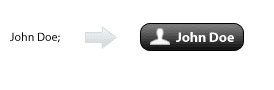
In fact the text can be replaced by a complex backing object (ViewModel)
that is rendered using some UI element (in this case a Button). We can
add more flexibility for the UI element by making it into a
ContentPresenter that takes in a DataTemplate, with the Content being
the ViewModel!
This is the purpose of a tokenizing control. Since we are dealing with
text most of the time and replacing some pattern of text into a token,
we continue to retain the editing capabilities. In other words, if I hit
the BackSpace key on the token-UI (shown as a Button), it is deleted
completely. You can think of this control as a runtime parser that
detects some pattern of text and converts that into a UI token (backed
by some ViewModel, potentially).
Now you may be thinking where could such a control be used. Well, the most common place is in an Email editor for the To/CC/BCC input areas. When you type in a prefix of a name, the control will try to match that against some AddressBook and convert that typed text into a rich token (backed by the Contact from the AddressBook). Outlook does this and so do many other email programs. One other place you will find a use is in data-entry forms where some typed text is converted to a matched object. Having such a control minimizes the errors in typing because you will get real-time validation with some visual feedback. Now that we know there is a “real” use case for this control, lets get into some implementation details, in WPF.
Behavior of the TokenizingControl
The general expectations from this control are outlined below:
- Should allow text editing with inline representation of matched text with a UI token
- Should provide ability to customize appearance of the UI token
- Should provide a way to match text and convert matched-text to a token object
Lets tackle one at a time. The first bullet tells us that the
TokenizingControl is like a hybrid TextBox that can hold text as well as
other UI elements, in other words we are looking at a RichTextBox as our
base. A RichTextBox encapsulates a FlowDocument (as its Document
property), which can hold both text and UI elements. By manipulating
this Document, we should be able to convert the typed text (which would
be in a Run) and convert that to a InlineUIContainer (a subclass of
Inline that wraps a UIElement). Thus at the UI level we are looking at a
Run to InlineUIContainer conversion, all happening inside the
FlowDocument.
Now that we have an InlineUIContainer to work with, we will need to
address bullet 2: customizing appearance of the token. This can be
easily achieved by using a ContentPresenter with a DataTemplate. We can
expose a DataTemplate property (let’s call it TokenTemplate) on the
TokenizingControl and provide this ability.
As regards the last bullet, we can have a Func<string,object> that
takes in a string (typed-text) and returns an object for the matched
token and null for no-match. We can expose this with a TokenMatcher
property of type Func<string, object>. This is the lambda that you will
use to convert text to a backing object (aka ViewModel). This backing
object becomes the Content of the ContentPresenter.
With that we have our class definition for the TokenizingControl, which
looks like below:
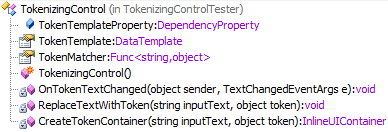
You can see the methods in this class that do the actual work. The
processing begins in the TextChanged event handler, where we get the
text from the CaretPosition and apply the TokenMatcher to determine the
token. If a valid token is found, we create the UI container and replace
the Run with the InlineUIContainer. The code below shows this in detail:
public TokenizingControl()
{
    TextChanged += OnTokenTextChanged;
}

private void OnTokenTextChanged(object sender, TextChangedEventArgs e)
{
    var text = CaretPosition.GetTextInRun(LogicalDirection.Backward);
    if (TokenMatcher != null)
    {
        var token = TokenMatcher(text);
        if (token != null)
        {
            ReplaceTextWithToken(text, token);
        }
    }
}

private void ReplaceTextWithToken(string inputText, object token)
{
    // Remove the handler temporarily as we will be modifying tokens below, causing more TextChanged events
    TextChanged -= OnTokenTextChanged;

    var para = CaretPosition.Paragraph;

    var matchedRun = para.Inlines.FirstOrDefault(inline =>
    {
        var run = inline as Run;
        return (run != null && run.Text.EndsWith(inputText));
    }) as Run;
    if (matchedRun != null) // Found a Run that matched the inputText
    {
        var tokenContainer = CreateTokenContainer(inputText, token);
        para.Inlines.InsertBefore(matchedRun, tokenContainer);

        // Remove only if the Text in the Run is the same as inputText, else split up
        if (matchedRun.Text == inputText)
        {
            para.Inlines.Remove(matchedRun);
        }
        else // Split up
        {
            var index = matchedRun.Text.IndexOf(inputText) + inputText.Length;
            var tailEnd = new Run(matchedRun.Text.Substring(index));
            para.Inlines.InsertAfter(matchedRun, tailEnd);
            para.Inlines.Remove(matchedRun);
        }
    }

    TextChanged += OnTokenTextChanged;
}

private InlineUIContainer CreateTokenContainer(string inputText, object token)
{
    // Note: we are not using the inputText here, but could be used in future

    var presenter = new ContentPresenter()
    {
        Content = token,
        ContentTemplate = TokenTemplate,
    };

    // BaselineAlignment is needed to align with Run
    return new InlineUIContainer(presenter) { BaselineAlignment = BaselineAlignment.TextBottom };
}
In action
The following picture shows the different stages in converting the text
to a token: user inputs text, types a semi-colon ;, text converted to
a token. We are using ; as our delimiter here.
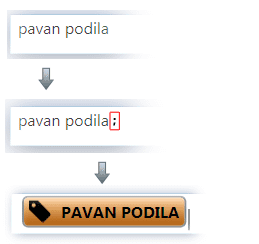
The TokenMatcher for this example looks like so:
Tokenizer.TokenMatcher = text =>
                             {
                                 if (text.EndsWith(";"))
                                 {
                                     // Remove the ';'
                                     return text.Substring(0, text.Length - 1).Trim().ToUpper();
                                 }

                                 return null;
                             };
If you run the example from the attached solution, there is a nice
animation that fades-in the token-UI once the user types in the ;.
This gives a nice effect of some transformation happening to the text.
Summary
This post showed you a neat way to transform text, that matches some
criteria, into tokens represented by a different UI. The
TokenizingControl does this job by using the
TokenMatcher (Func<string, object>) and converting matched text into
tokens represented by the TokenTemplate (DataTemplate). The tokens are
inserted inline using the InlineUIContainer. The RichTextBox was the
base for the TokenizingControl.
As a parting thought, I want to mention that you can add several useful features to this control:
- An inline autocompletion popup that shows up as you type text. The autocompletion helps in narrowing down the options even more
- The token-UI can be much more sophisticated (potentionally a custom control of its own that is used internally by the TokenizingControl)
- There can be an ItemsSource-like property that takes in a collection of ViewModel objects and converts them to UI-tokens and also the other way around
- The TokenMatcher can be far more intelligent and generate not just a single token out of the text but also help in the autocompletion!
[Note: I do have a control that does all of the above ;-)].
Hopefully this post shares enough info to create one of your own!